
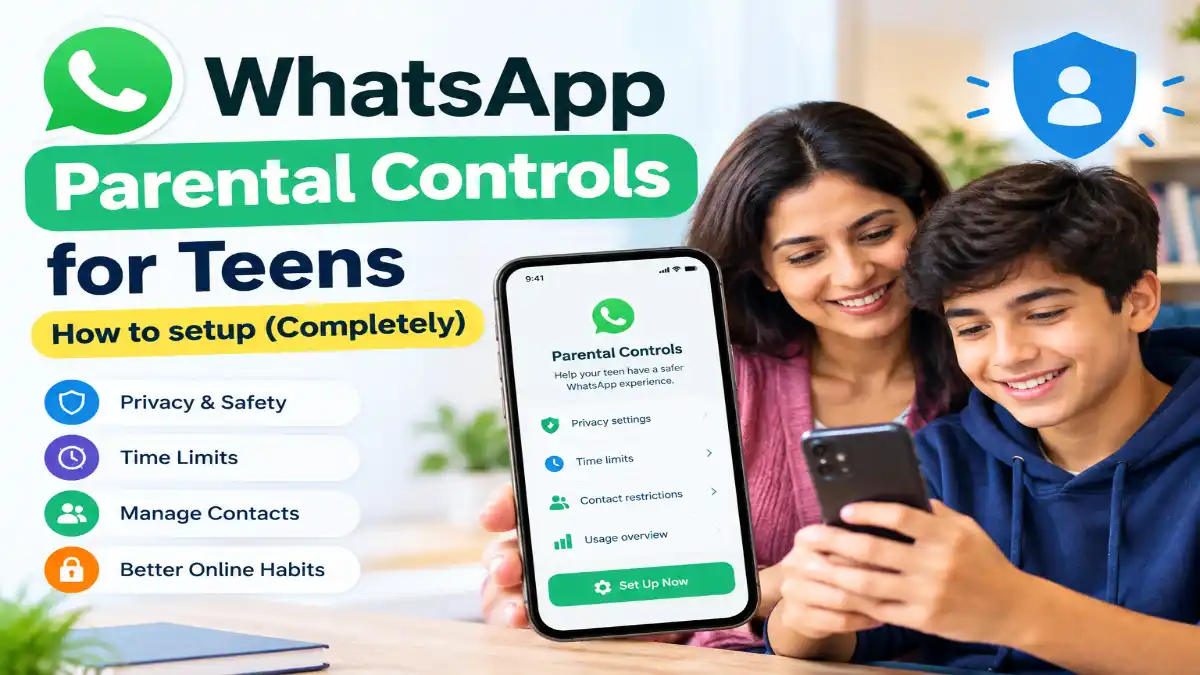

For many parents, keeping teenagers safe on messaging apps is a top priority. WhatsApp has recently launched new parental control features for teenagers’ accounts on both Android and iOS. These tools allow parents to manage how their child uses the app without reading their private chats.
If you want to set up these security measures, here is a simple guide explaining what these features do, how to enable them, and what to expect from them.
The Most Important Rule: Messages Stay Private
First of all, it is important to know what these controls cannot do. WhatsApp messages and calls remain end-to-end encrypted. This means that parents cannot read their teenager’s texts, listen to voice notes, or view shared photos.
The focus of the new features is not on the content of conversations, but on managing the app’s settings and limitations. This approach protects teenagers’ right to private conversations while also safeguarding them against external threats.
What Parents Can Actually Control
Once you link your account to your teen’s phone, you gain access to a dedicated parental dashboard. From here, you can manage several key features:
- Profile and Status Privacy: You decide who can see your teenager’s profile photo and who can see their status updates.
- Group Invites: You can decide who can add your teenager to WhatsApp groups.
- Meta AI Limits: All parents can choose how their teenager uses Meta AI. You can keep it on the default 13+ setting or switch to the stricter “Limited Content” mode. In the stricter mode, features like incognito chats and message summaries are disabled.
- Channel Restrictions: You can control how your teen interacts with WhatsApp Channels.
- PIN Protection: You will create a 6-digit PIN during setup. Your teen cannot change any of these privacy settings without entering that PIN.
- Automatic Removal: You must enter your teen’s birthdate during setup. WhatsApp uses this date to automatically turn off all parental controls the day the teen turns 18.
Group Activity Alerts
Large group chats can sometimes become overwhelming or expose teenagers to strangers. To keep you informed, WhatsApp sends push notifications for certain group events:
- When your teen joins a new group.
- When your teen leaves a group.
- When a group your teen is already in grows significantly in size (specifically when it hits 30, 100, or 250 members).
You can also check an activity log in the parental dashboard to review these recent events. This gives you a clear picture of their app activity without needing to look at their actual messages.
How to Set Up Parental Controls (Step-by-Step)
The setup process is quick and requires the phones of both you and your teenager. Simply follow these steps:
- Open WhatsApp on your Teen’s phone.
- Tap the three dots (Android) or Settings (iOS) and select Parental controls.
- Enter your teen’s date of birth when prompted.
- A QR code will appear on their Whatsapp screen.
- Open WhatsApp on your phone, go to Settings, and use the QR code scanner to link the two accounts.
- Create a secure 6-digit PIN. Keep this safe, as you will need it to approve any future setting changes.
Important for Parents
Technology settings work best when accompanied by open dialogue, meaning when they are actually put to use. Sit down with your teenager while configuring these settings. Explain to them that these controls are not for spying, but rather to keep them safe from spam, scams, and unwanted group invitations.
Note: WhatsApp is rolling out this feature gradually. If you do not see the “Parental controls” option in your Settings menu yet, check the Google Play Store or Apple App Store to ensure your app is updated to the latest version.
